Chapter 6.2
Verified · Installation & Setup
Defines weekly operating hours used by the Open / Closed Sign and booking safeguards.
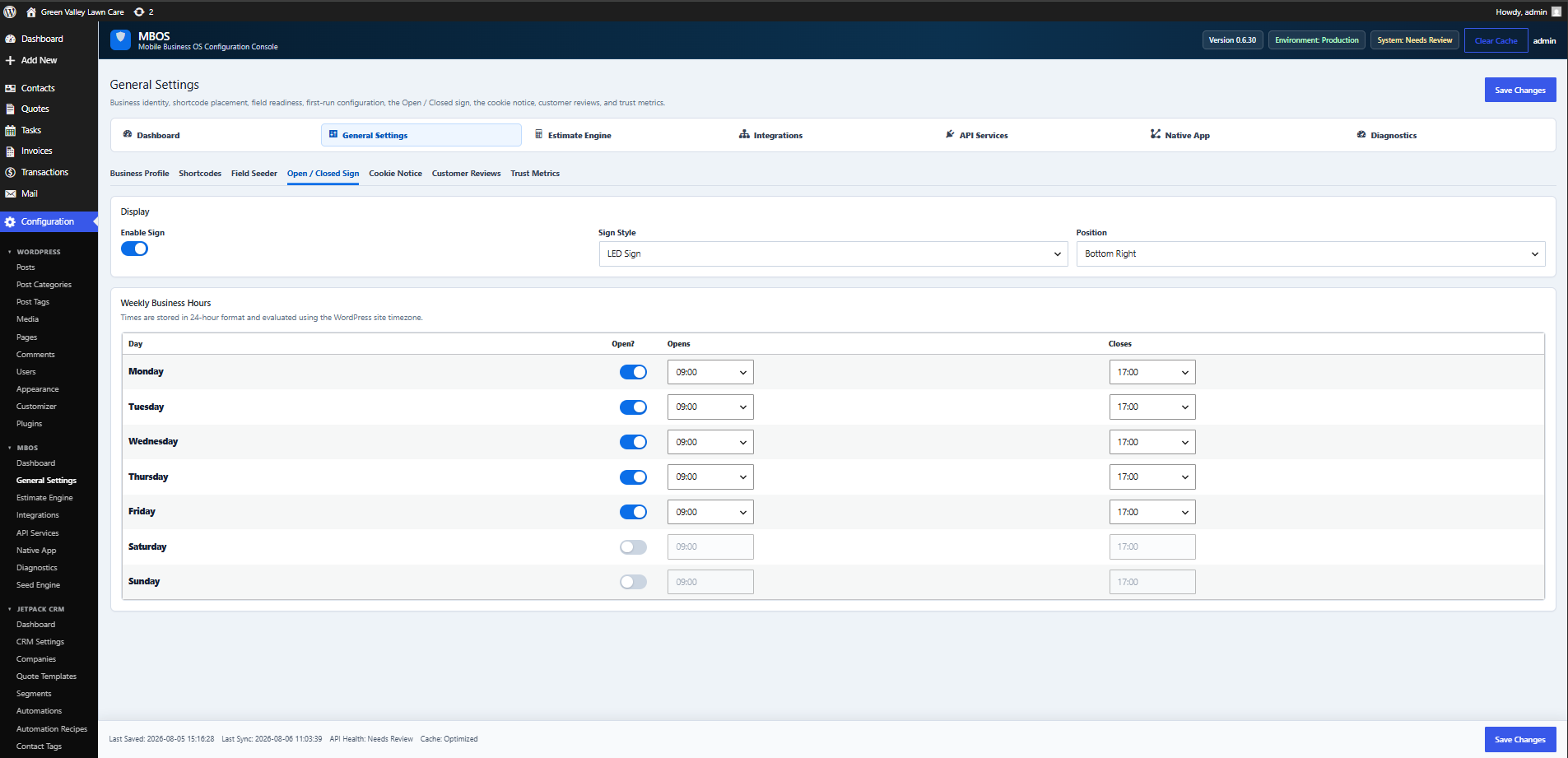
Navigate: MBOS → General Settings → Open / Closed Sign
What does this control?
Defines weekly operating hours used by the Open / Closed Sign and booking safeguards.
How do I configure it?
- Enable the sign if it should appear publicly.
- Choose the sign style and position.
- Enable each operating day.
- Set opening and closing times.
- Click Save Changes.
Why is this useful?
Accurate hours align the website status indicator and booking availability with actual operations.
How do I verify it?
- Visit the public website and confirm the current Open / Closed state.
- Test appointment availability outside configured hours.