WNYpress

Connect Google Reviews to MBOS

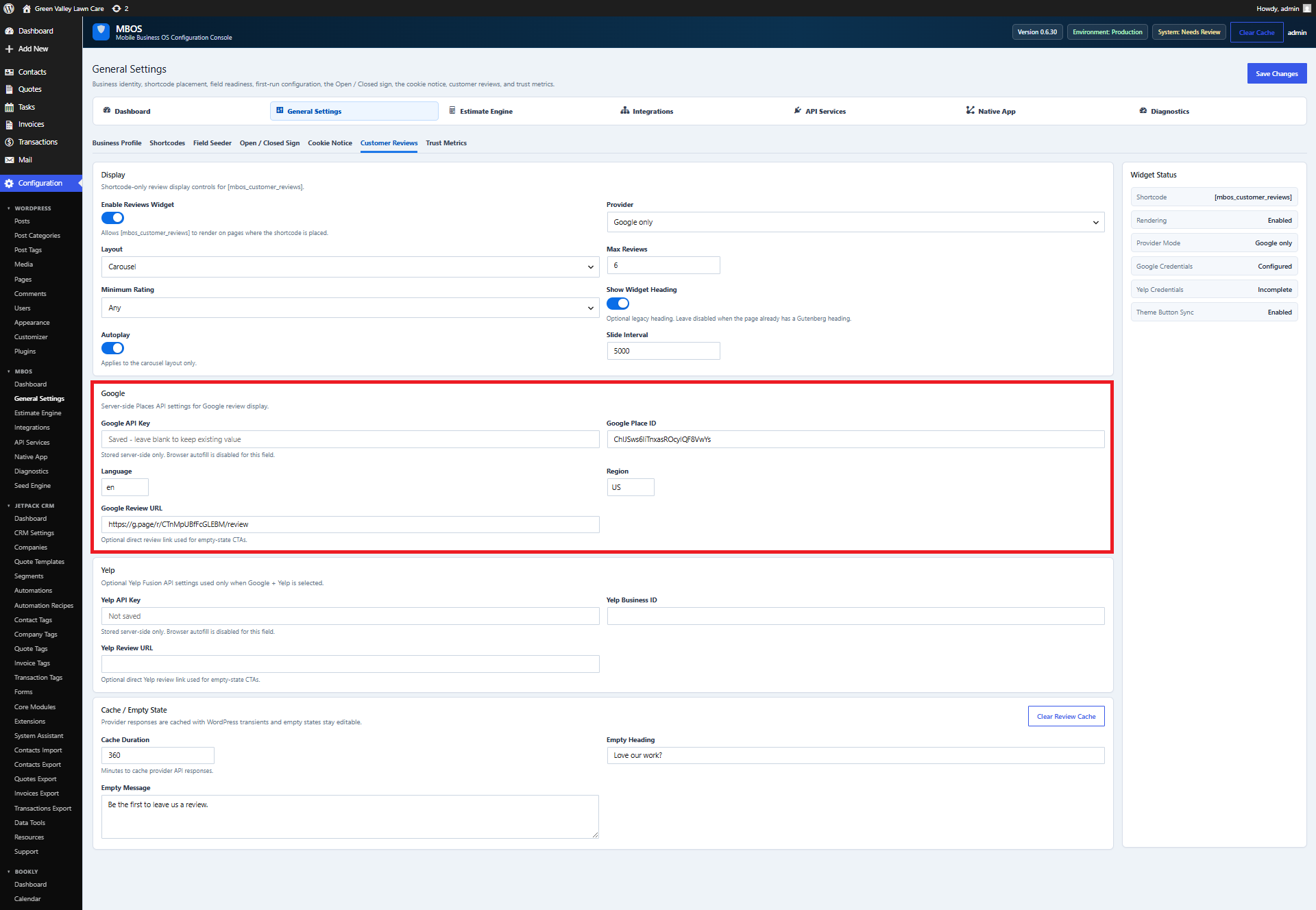
Chapter 6.3 Verified · Installation & Setup Connects the customer reviews widget to the business’s Google review data. Navigate: MBOS → General Settings → Customer Reviews Figure 6.3 · Screenshot captured from the verified demonstration installation. Sample business information is illustrative. What does this control? Connects the customer reviews widget to the business’s Google review…
Chapter 6.3

Verified · Installation & Setup

Connects the customer reviews widget to the business’s Google review data.

Navigate: MBOS → General Settings → Customer Reviews

Screenshot for How do I connect Google Reviews to MBOS?
Figure 6.3 · Screenshot captured from the verified demonstration installation. Sample business information is illustrative.

What does this control?

Connects the customer reviews widget to the business’s Google review data.

How do I configure it?

  1. Enter the Google API Key.
  2. Enter the Google Place ID.
  3. Enter the direct Google Review URL.
  4. Review provider, layout, rating, and carousel settings.
  5. Click Save Changes.

Why is this useful?

Displays social proof and provides a direct path for customers to leave reviews.

How do I verify it?

  • Confirm Widget Status reports configured credentials.
  • Visit the reviews section and verify a review appears.
  • Test the Leave a Google Review link.

Still need help?

If this article didn’t solve the problem, send WNYpress the details and we’ll help you with the next step.