Chapter 5.2
Verified · Installation & Setup
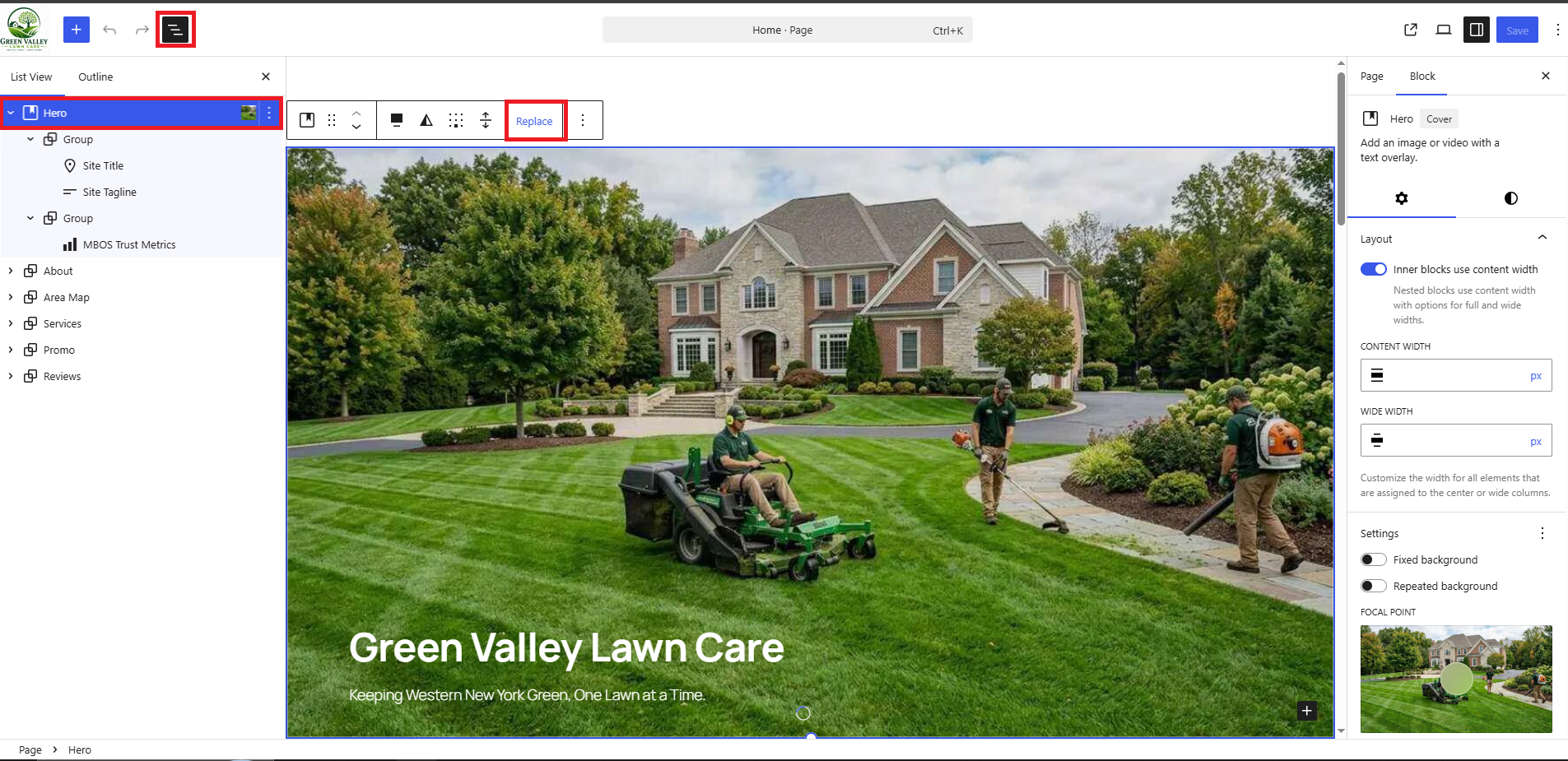
Replace the Hero cover image while keeping dynamic identity blocks.
Navigate: Gutenberg → List View → Hero
What does this control?
The Hero contains a Cover block, dynamic Site Title and Site Tagline blocks, and MBOS Trust Metrics.
How do I configure it?
- Select Hero in List View.
- Choose Replace and upload a wide business image.
- Set useful alternative text.
- Do not replace Site Title or Site Tagline with static text.
- Save the page.
Why is this useful?
The dynamic blocks keep the Hero synchronized with WordPress General Settings.
Note: The original seed’s static Heading and Paragraph were replaced by Site Title and Site Tagline blocks.
How do I verify it?
- View the public page and confirm the image, business name, tagline, and metrics appear.