Follow the steps below to update a WordPress password through the database. This is helpful if you can’t receive the password reset email.
- Sign in to phpMyAdmin.
Note: If you’re using cPanel Hosting, you must select the database for your WordPress site in the left-hand column before continuing to the next step.
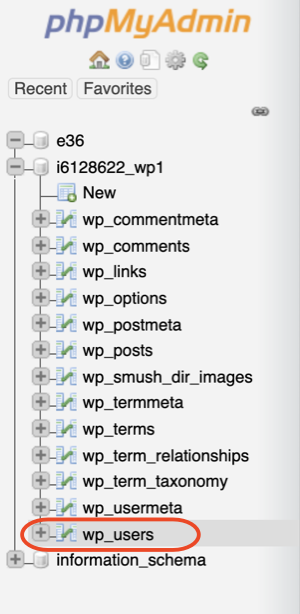
- From the sidebar menu, select the _users table.
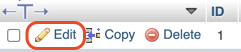
- Next to the user you want to update, select Edit.
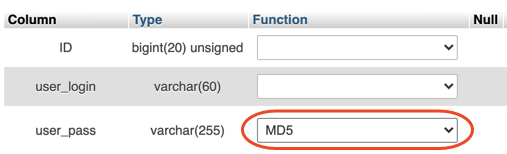
- In the Value column, delete the contents of the user_pass box.

- Enter your new password into the same box.

- In the function column, use the drop-down menu and select MD5.
- Select Go.
You can now sign in with your new password.
Related step
More info
- Here’s what to do if you’re unable to sign in to WordPress.
- Resetting Your Password