Chapter 3.2
Captured · Installation & Setup
Run Bookly’s first-time setup and bypass optional onboarding choices so MBOS can configure the booking system.
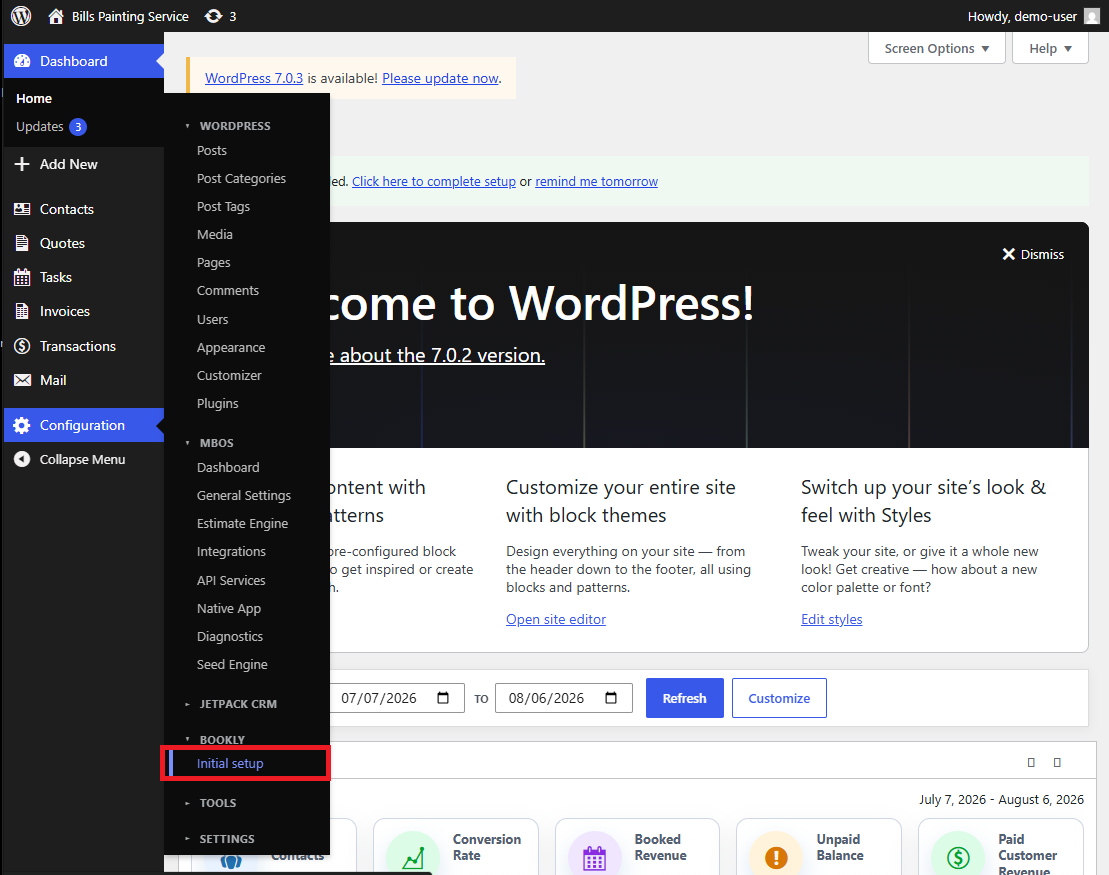
Navigate: WordPress Dashboard → Configuration → Bookly → Initial setup
What does this control?
Bookly must finish its initial run before MBOS can safely seed and synchronize booking configuration.
How do I complete it?
- Open Configuration → Bookly → Initial setup.
- Select Continue.
- Select Skip on the next four optional setup screens.
- Select Finish to complete Bookly’s initial run.
Why is this useful?
This creates Bookly’s required internal configuration without introducing optional wizard settings that may conflict with the MBOS seed package.
How do I verify it?
- The Bookly Initial setup item no longer requires completion.
- Bookly pages load without returning to the onboarding wizard.
Important:
- Required sequence: Continue → Skip → Skip → Skip → Skip → Finish.