Chapter 4.1 Captured · Installation & Setup Set the site title, tagline, site icon, timezone, and date/time preferences. Navigate: WordPress Dashboard → Settings → General Figure 4.1 · Screenshot captured from the verified demonstration installation. Sample business information is illustrative. What does this control? These settings establish the site identity and local time used by…
Published
Chapter 4.1
Captured · Installation & Setup
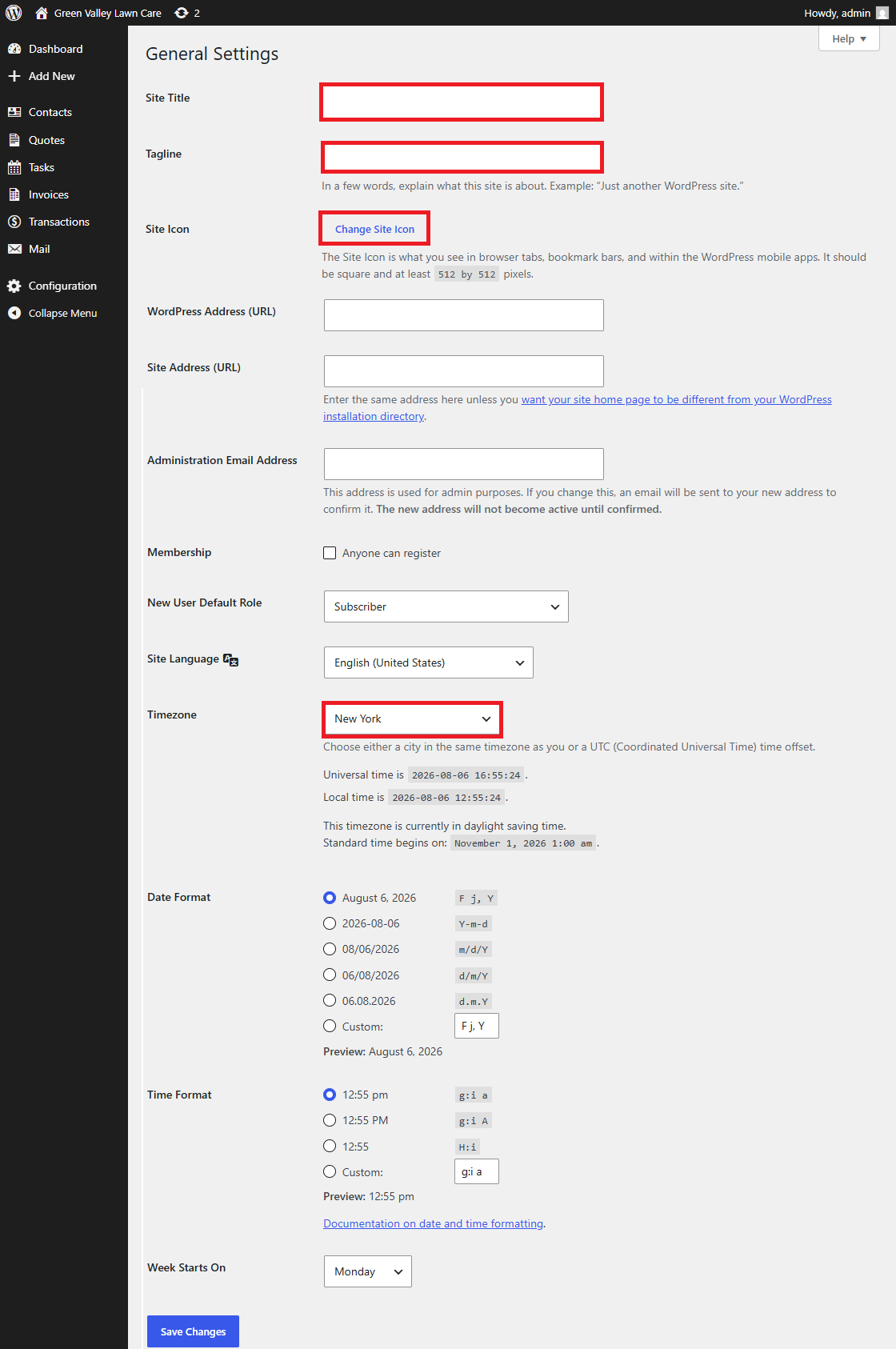
Set the site title, tagline, site icon, timezone, and date/time preferences.
Navigate: WordPress Dashboard → Settings → General
Figure 4.1 · Screenshot captured from the verified demonstration installation. Sample business information is illustrative.
What does this control?
These settings establish the site identity and local time used by WordPress and MBOS.
How do I configure it?
Enter the business name as Site Title.
Enter the business slogan as Tagline.
Upload a square Site Icon of at least 512 × 512 pixels.
Choose the business’s local timezone.
Save Changes.
Why is this useful?
Dynamic Site Title and Site Tagline blocks use these values throughout the website.
How do I verify it?
Confirm the browser title, Hero, and Footer show the correct identity.
Still need help?
If this article didn’t solve the problem, send WNYpress the details and we’ll help you with the next step.