Chapter 3.6
Update Bookly staff details
Confirm the Bookly staff member is connected to the correct WordPress user and uses the business owner’s name, email, and public visibility.
Navigate: WordPress Dashboard → Bookly → Staff Members → Edit
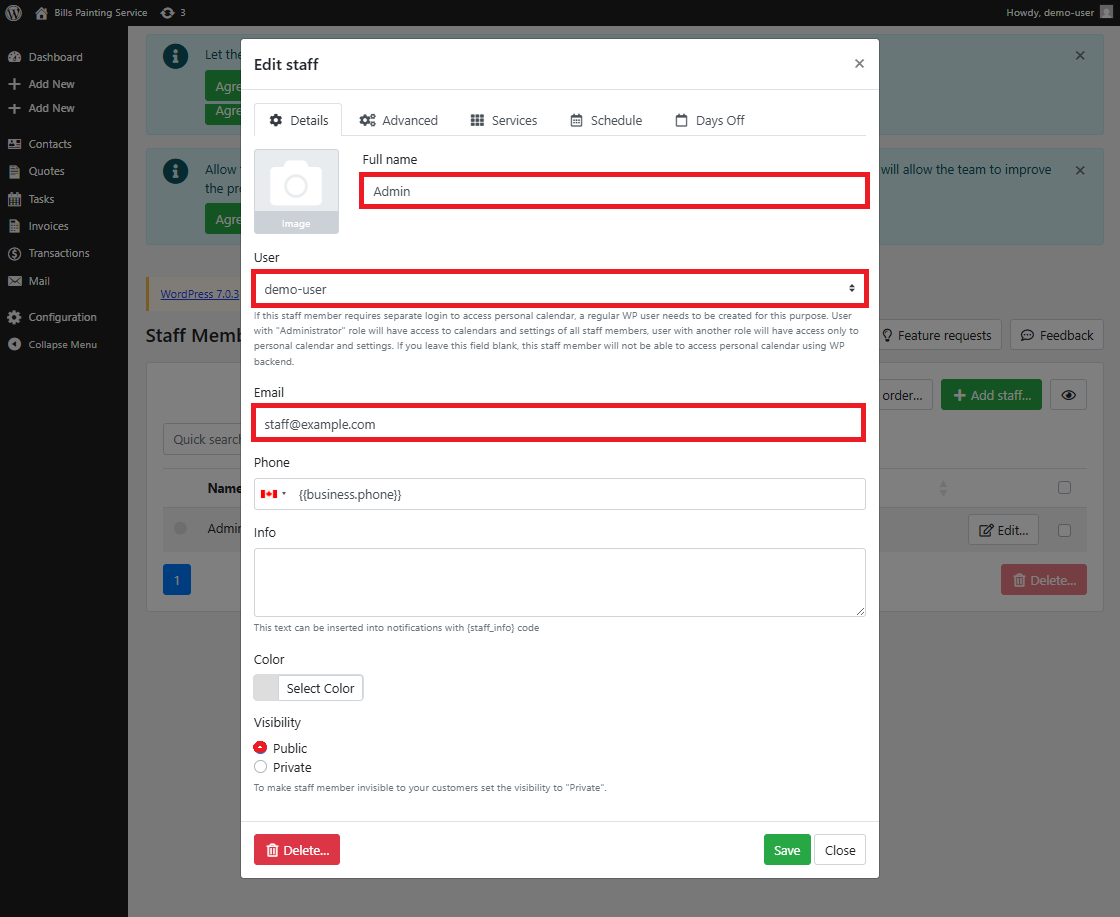
What does this control?
The Bookly staff record identifies the person assigned to customer appointments and connects that staff member to the correct WordPress account.
How do I complete it?
- Open Bookly → Staff Members and select Edit for the Admin staff member.
- In Full name, enter your name or leave Admin unchanged. Updating the name is optional.
- Confirm the correct WordPress user account is selected in the User field.
- In Email, enter the same email address used when WordPress was installed.
- Under Visibility, select Public.
- Select Save.
Why is this useful?
Using the correct WordPress user and email keeps staff access, appointment ownership, calendar access, and booking notifications associated with the right account.
How do I verify it?
- The intended WordPress user appears in the User field.
- The staff email matches the WordPress installation email.
- Visibility is set to Public.
- The saved staff member remains available in Bookly and can be assigned to services.
Important:
- Changing the Full name field is optional. Do not create a second staff member merely to replace the seeded Admin record.
- Confirm the staff member is assigned to the appropriate Bookly services before accepting appointments.