Chapter 5.6
Personalize the Footer and On-Site Visit call to action
Edit the Footer template part, not the homepage content.
Navigate: Appearance → Editor → Templates → Pages → Footer → Edit Original
What does this control?
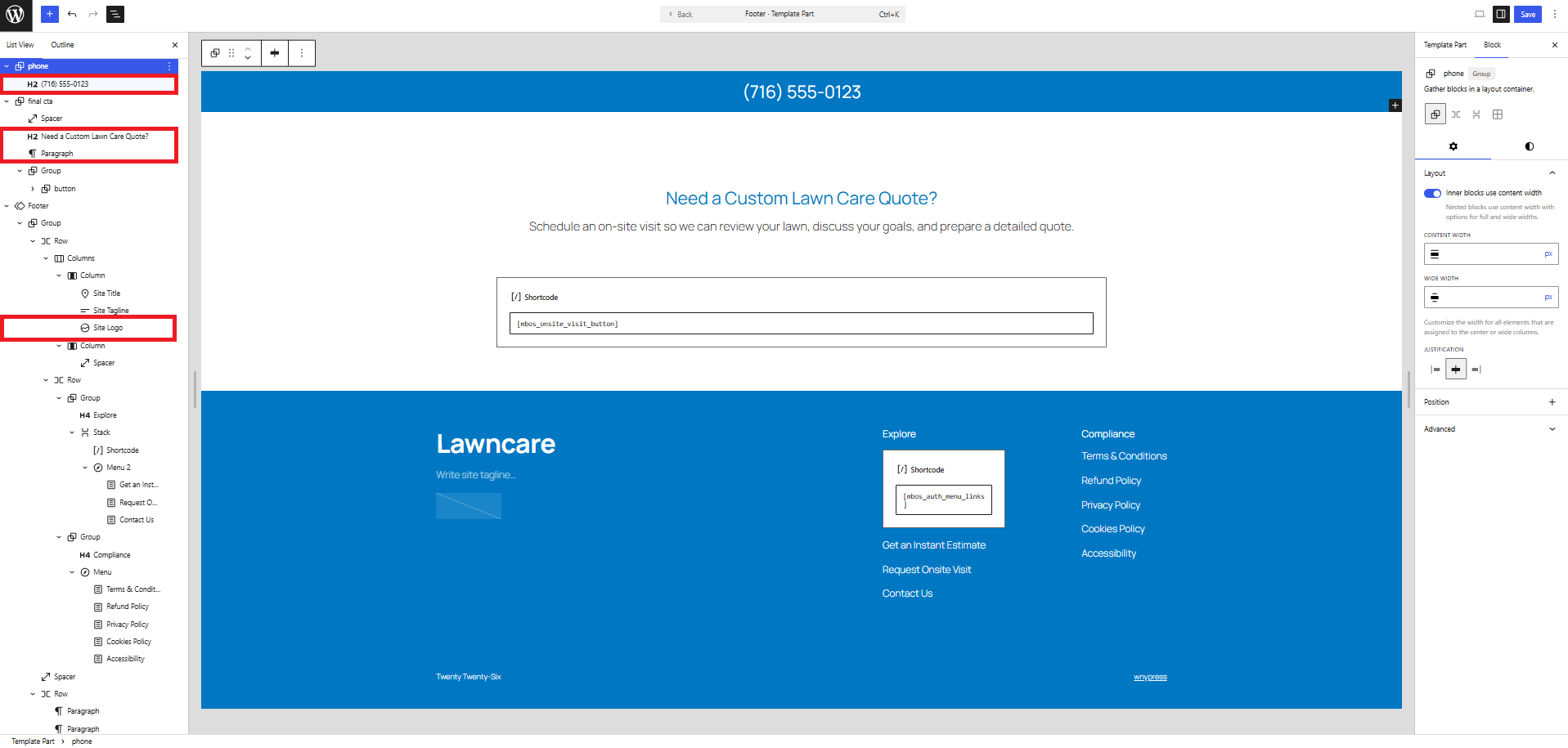
The Footer contains the phone number, business identity, logo, navigation, and On-Site Visit CTA.
How do I configure it?
- Update the phone number.
- Optionally update the CTA heading and paragraph.
- Choose the business logo in the Site Logo block.
- Keep dynamic Site Title and Site Tagline blocks.
- Save the template part.